How to Create a QR Code Menu for Restaurants (2026 Guide)
Step-by-step guide to building a QR code menu for your restaurant — menu design, print sizes, placement, and how to update it without reprinting.
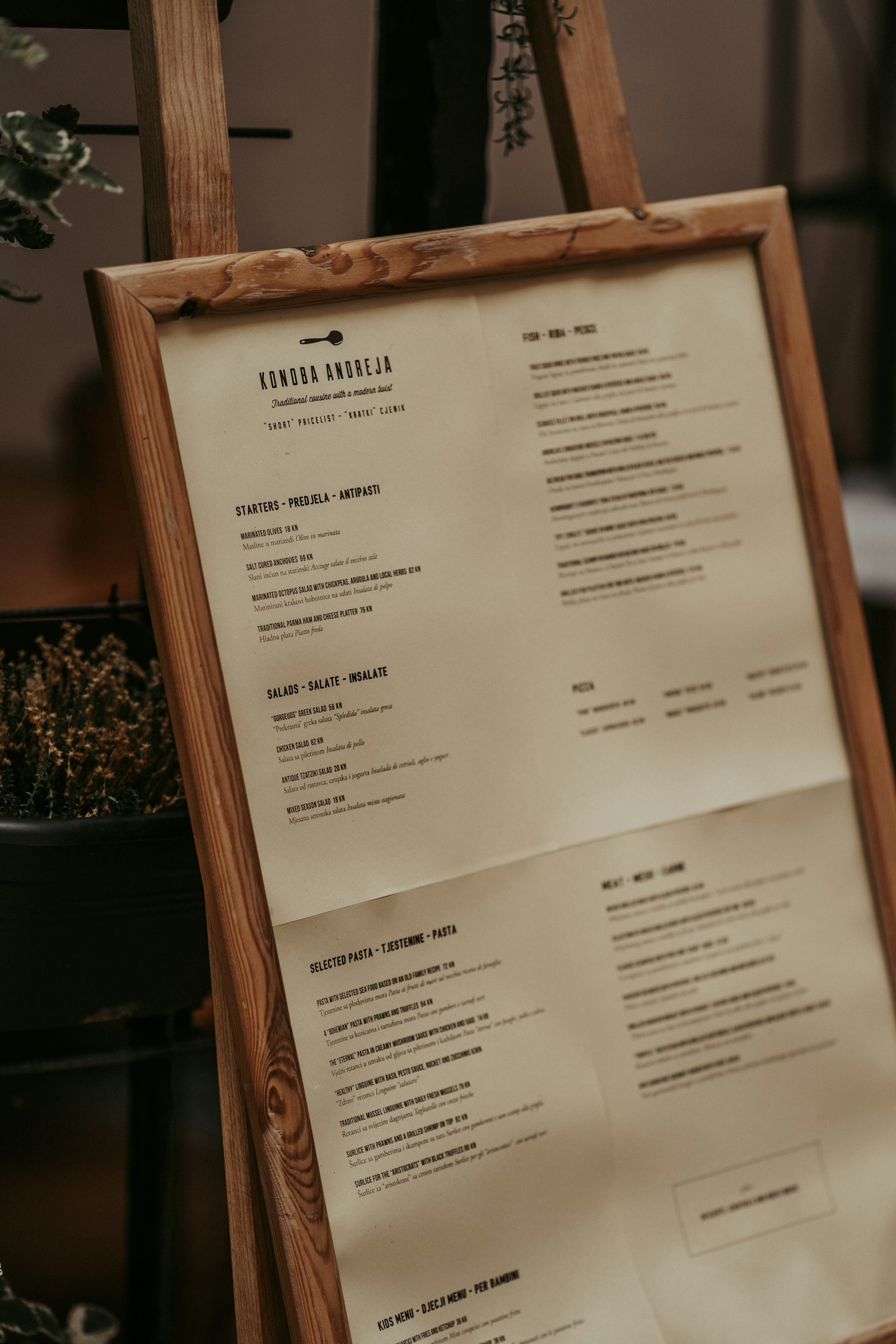
A QR code menu replaces the printed menu that every customer touches, wipes down, and reads in poor lighting. Done right, it loads in a second, shows today's prices, and lets you change a dish without reprinting anything. Done wrong, it sends customers to a PDF that won't open.
This guide walks through building a QR code menu that works the first time — from choosing static vs dynamic, to sizing it for a table tent, to updating prices on the fly.
1. Choose a dynamic QR code (not a static one)
Static QR codes bake the destination URL into the pattern. If you ever want to swap the menu, fix a typo, or add a seasonal item, you have to reprint every table tent. Dynamic QR codes point to a short URL that you control — the printed code stays the same while you edit the destination from your dashboard.
For any menu that changes more than once a year, use dynamic. See the 13 dynamic QR types QRDyno supports — the Menu and PDF types are the most common for restaurants.
2. Decide what lives behind the QR code
There are three common setups:
- PDF menu. Fastest to set up — upload the same PDF you already print. Downsides: big file sizes load slowly on mobile and pinch-zoom is clunky.
- Digital menu page. A mobile-first page with sections, prices, and dish photos. Loads instantly, looks native on phones, and supports filters like "vegetarian" or "gluten-free".
- Hybrid. Digital menu by default, with a "Download PDF" link for customers who want to print or save it.
If you're short on time, start with the PDF route. You can upgrade to a digital menu later without changing the printed QR code.
3. Size it right for the table
QR codes need to be big enough for a phone camera to scan from 30–40 cm away — the natural distance when someone holds their phone over a table. Rules of thumb:
- Table tent or menu corner: 2 × 2 cm minimum, 3 × 3 cm is safer.
- Window decal or host stand: 5 × 5 cm — scanned from 1–2 meters away.
- Receipt: 1.5 × 1.5 cm works as long as the thermal-print contrast is strong.
Quiet zone matters. Always leave a white margin (at least 4 "modules" wide) around the QR code. Codes printed flush against borders or colored backgrounds fail to scan more often than people realize.
4. Place it where people actually look
- On every table — table tents or stickers near the napkin holder. Customers scan within seconds of sitting down.
- Corner of the printed menu — for repeat customers who already know what they want.
- Window front — lets people browse the menu before they walk in. Drives foot traffic and phone-ahead orders.
- Receipt or takeout bag — links to a coupon for their next visit.
5. Test before you print 100 of them
Before placing a bulk print order, run through this checklist:
- Scan it with an iPhone native camera from 30 cm away.
- Scan it with an Android phone (Pixel or Samsung).
- Try it in low light — matte surfaces scan better than glossy ones.
- Ask a server to test it during a real shift.
Only after it passes all four tests should you print at scale.
6. Update without reprinting
This is where dynamic QR codes pay for themselves. Menu prices change, dishes go seasonal, suppliers sub in different ingredients. With a dynamic QR you log in, edit the destination, and every future scan sees the new version.
The printed code never changes. You don't call the printer. You don't retrain servers. The scan just returns today's menu.
7. Track what's working
With scan analytics, you learn things like:
- Which table tents get scanned and which are ignored (maybe the lighting is bad at that table).
- How scans ramp from 6 pm to 9 pm.
- Whether the window decal outperforms the table tent for new customers vs regulars.
Use that data to move codes, redesign tents, and time your social posts to scan peaks.
Ready to ship?
Building a QR code menu takes about 20 minutes end-to-end: create the dynamic QR, upload or build your menu page, download the PNG or SVG, send to print, and stick them on tables tomorrow.
Start with a free QRDyno account — the free plan includes 3 dynamic QR codes, which is enough to cover the menu, a coupon for returning customers, and a link to your social accounts.
Ready to try it?