Virtual Tour QR Codes for Property Listings: Setup, Best Practices, Examples
How to set up a Gallery + virtual tour QR code that lets buyers walk through a property from the curb. Includes sizing, placement, and what to include.
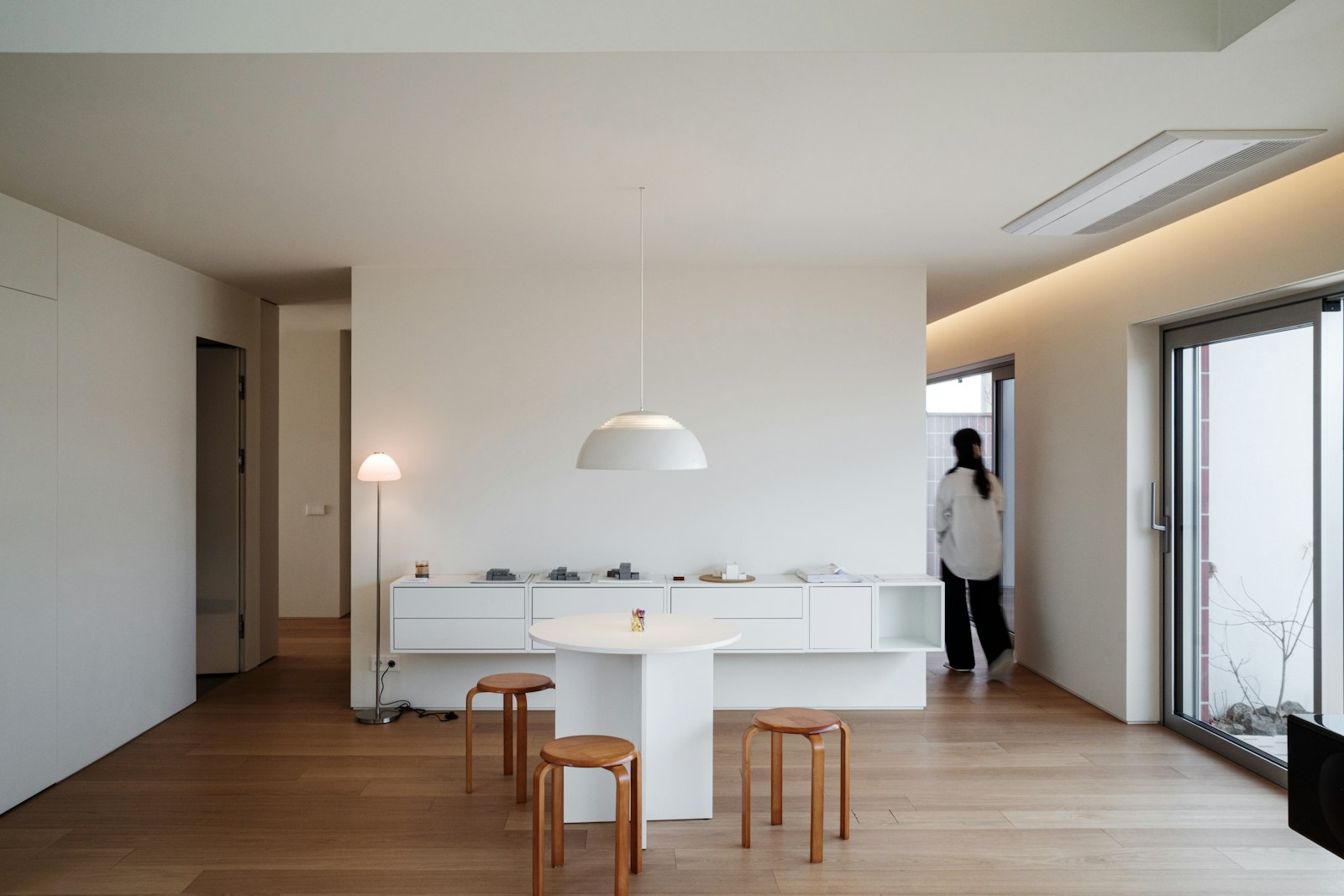
A buyer pulls up to a yard sign on a Sunday afternoon. They've got 90 seconds before they have to decide whether this property is worth coming back for. Today they call the agent or look it up on Zillow at home. With a QR code on the sign, they walk through the property right there on the curb.
That's the promise of a virtual tour QR code. This guide covers how to actually set one up: what the destination page should be, what to include in the tour, sizing for the sign, and the production tradeoffs that affect conversion.
For the broader real estate QR playbook, start with QR codes for real estate — this guide drills into the tour-specific setup.
What a "virtual tour QR code" really is
It's a dynamic QR code pointing to a destination that combines:
- Photo gallery — the hero photos of the property, mobile-optimized.
- Walkthrough video — short (60–90 second) drone or handheld walkthrough.
- 3D tour — Matterport, Zillow 3D, or similar.
- Floor plan — labeled, scrollable on mobile.
- Listing details — beds, baths, sqft, key features, asking price.
- Lead-capture button — "I want to schedule a tour" or "Send me comparable listings."
The QR code itself is just a router. The conversion is the destination.
Use the right QR type
QRDyno offers a Gallery type that's purpose-built for this: a mobile carousel of photos with embedded video and links. It loads in under a second on 4G, supports swipe navigation, and looks native on phones.
The alternative is a Link QR pointing to a custom landing page (your website, your CRM's listing page, or a Notion site). Both work. Gallery is faster to set up; custom Link gives you full control. For most agents, start with Gallery.
For more on the broader Gallery + Link options, see QR codes for real estate.
Photo set: what to include
Eight to twelve photos, in this order:
- Hero exterior shot — the same one your yard sign is pointing at.
- Living room / great room — the most aspirational space.
- Kitchen — the second most-judged room.
- Primary bedroom.
- Primary bath.
- Best secondary feature — the view, the deck, the pool, whatever's special.
- Floor plan — labeled.
- Aerial / drone — if available. 9–12. Secondary rooms in order of impact.
More than 12 and visitors swipe-fatigue. Fewer than 8 and the tour feels thin. Tighten ruthlessly.
Video: short, mobile, vertical
The single biggest mistake with listing video: shooting horizontal because that's how the agent's previous brokerage did it. Phone scanners on yard signs are vertical. Your video should be too.
- 60–90 seconds. Anything longer loses people.
- Vertical (9:16) or square (1:1). Native to phones.
- Captioned. 80% of people watch on mute outdoors.
- Music optional, voiceover better. "Welcome to 1234 Main St" + a 60-second tour beats a music-only montage every time.
- Hosted somewhere fast. YouTube unlisted, Vimeo, or Cloudinary. Avoid hosting on your own slow CMS.
3D tour: Matterport vs alternatives
Matterport is the gold standard but charges $70–200 per scan. Alternatives:
- Zillow 3D Home. Free, iOS only, lower quality but acceptable for sub-$500K listings.
- Cupix, Asteroom. Cheaper than Matterport, similar quality.
- iPhone LiDAR + Polycam. $15/month, surprisingly good for solo agents.
For listings over $1M, Matterport pays for itself in conversion. For starter homes, Zillow 3D is fine.
Whichever tool you use, the link goes into the destination page, not into the QR code itself.
Floor plan: don't skip it
Buyers ask "what's the layout?" before "what's the price." A labeled floor plan answers that in 5 seconds.
- Mobile-first SVG or PNG. Vector when possible — pinches and zooms cleanly.
- Labeled rooms. Don't make people guess.
- Dimensions in feet and meters. International buyers exist.
If you don't have a floor plan, a 5-minute pass through Floorplanner or RoomSketcher gives you one good enough for the QR landing page.
Sizing the QR code on the sign
Yard signs are viewed from 1–3 meters away. The QR code should be:
- At least 3 × 3 inches (7.5 cm). Smaller fails too often outdoors.
- 4 × 4 inches if possible. Comfortable for drive-by scans.
- With a clear quiet zone — at least 10% of code width as white margin.
A common pattern: a yard-sign rider that's nothing but the QR code, mounted just below the main sign. Two-piece signs let you swap the rider when the listing goes pending without redoing the main sign.
Test before you scale
Before printing 50 yard signs:
- Print one rider with the QR code.
- Mount it on a test sign in your driveway.
- Scan it from a parked car at 6 am, noon, and 6 pm. Sun angle matters.
- Scan with iPhone and Android.
- Walk past at 2 mph as if you were on the sidewalk. The pattern should still resolve.
If any of those fail, fix the print spec — usually the issue is matte vs glossy, or quiet zone, or pattern size.
Track what's working
Scan analytics tell you:
- Which listings drive the most curbside scans. If your high-end listings get fewer scans than mid-tier, the placement may be wrong.
- Time of day patterns. Most scans come 6–8 pm and on weekend afternoons.
- Devices. If 90% of scans are iPhone, optimize the destination for Safari. If you have a 50/50 mix, test both.
Pair the scan data with destination-page analytics (Google Analytics, Plausible) to see what visitors do after scanning. Bounce rate by device, time on page, click-through to the lead form.
Common mistakes
- Pointing the QR to your homepage. Listing-specific landing page or nothing.
- Auto-playing video with sound. Annoying outdoors.
- Photo gallery in landscape carousel. Use vertical or square; matches phone orientation.
- No CTA on the destination. Buyers came for the tour, but you need them to act. "Schedule a showing" button at top + bottom.
- Not updating after price drop. The whole point of dynamic is that the destination updates. Don't forget to actually update it.
A 14-day rollout
- Day 1–3. Photo set + 60-second video for one listing. Get them onto the destination page.
- Day 4. Set up Gallery QR code in QRDyno. Test scan from your phone.
- Day 5–6. Print yard-sign rider with the QR at 4 × 4 inches.
- Day 7. Install on property. Brief any agents at your brokerage.
- Day 8–14. Monitor scans. Note which time of day and which devices.
By day 14 you have data, a process, and (usually) a few leads from the destination's lead-capture form.
Tying it together
A QR code on a yard sign isn't a gimmick — it's a 6-square-inch portal to your full listing experience. The barrier to entry is one Gallery QR code, eight photos, a short video, and a sticker.
For the broader real-estate QR playbook, see QR codes for real estate.
Ready to try it?